
WordPress publishing and scheduling
Take your article from draft to WordPress.
Reduce the work of copying text and images into another editor. Send reviewed articles to your connected WordPress site.
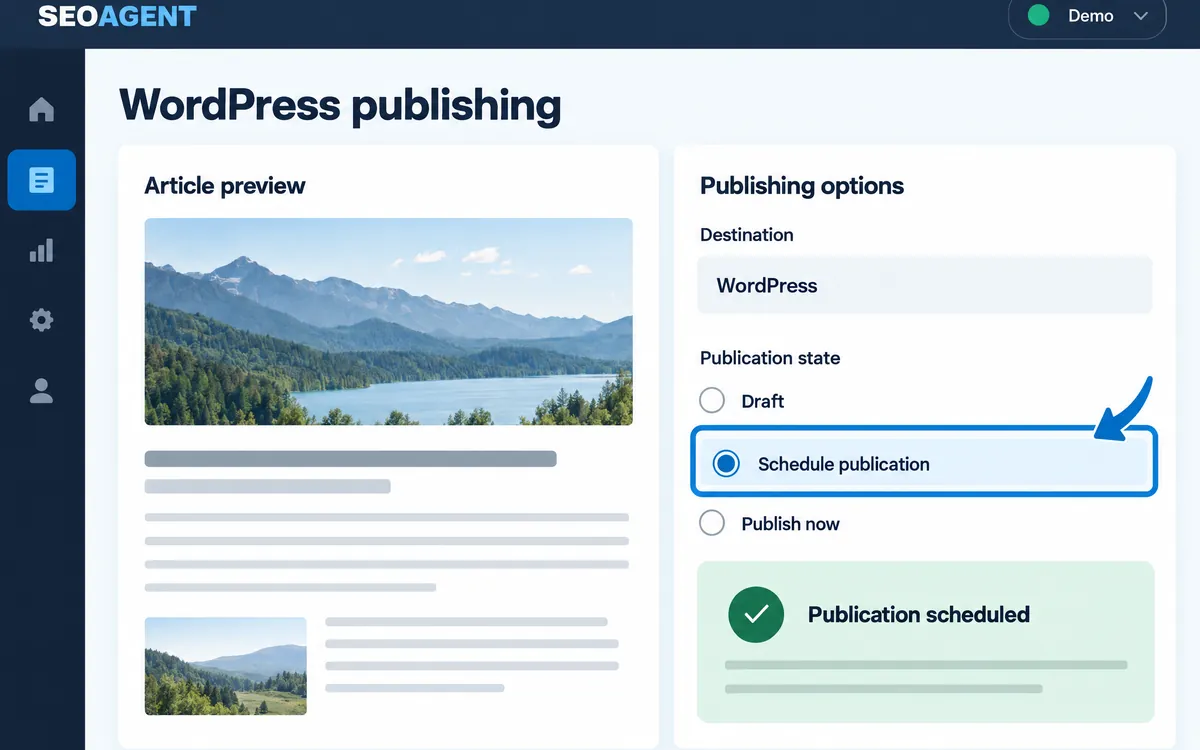
Prepare the publishing details
Set the title, body, images, categories, tags, slug, and other supported fields.
Choose when to publish
Publish now or schedule the article to fit your publishing plan.
Update an existing article
Connect rewriting with the publishing step by updating the corresponding article.
The workflow
- Connect WordPress
- Review the article
- Set publishing options
- Publish or schedule
- Check the result
An example
Prepare several articles and set their intended publishing dates without treating writing and uploading as separate projects.
What you can do on screen
- Connect WordPress with the site URL, your username, and an application password.
- Choose Publish (immediately) or Schedule (at a set date and time).
- If a slug already exists, a number is added to the end.
- Scheduling without completing the pre-publication check shows a warning.
- On sites using Yoast SEO, the description may not be written, and descriptions already entered in WordPress are not overwritten.
What to know
This is an article publishing workflow, not an automatic website or server builder. Multilingual plugins and SEO metadata need compatibility checks for your setup.
Does this publish everything with no checks?
No. Publishing options and dates are selected, and review and automation conditions vary. This is not unconditional automation of an entire website.
Can I send an article to WordPress as a draft?
No. You publish immediately or schedule a date and time.