
Internal link suggestions and insertion
Help readers reach the next useful article.
Review which pages to connect and where a link belongs. Consider the paragraph, link wording, destination, and reason—not just a list of related pages.
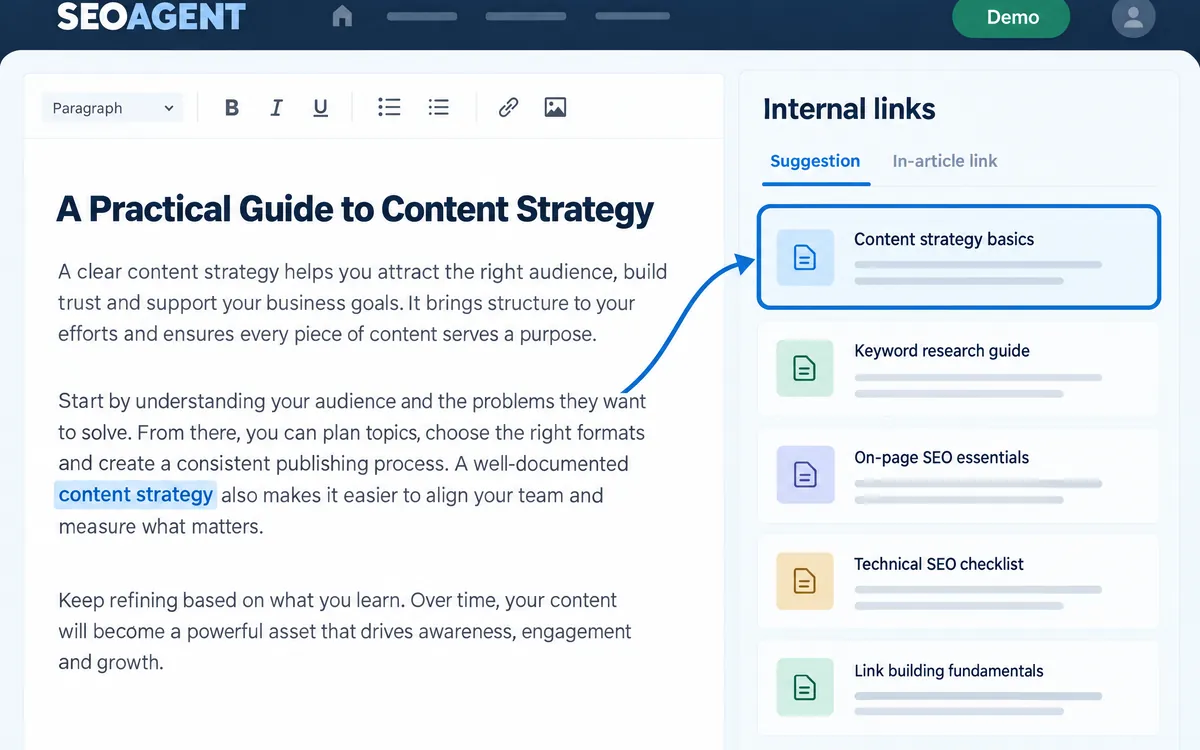
See the connections
Review incoming links, outgoing links, and suggestions for articles in a site-level table.
Check the context
Inspect the suggested placement, wording, destination, and rationale. You can also look for source articles that could link to the current page.
Apply a link to the draft
For supported suggestions, insert the selected link into the tool’s article copy, then update the published article separately.
The workflow
- Review connections
- Check the suggestion
- Insert into the draft
- Update the article
An example
Link a paragraph about maintenance in a buying guide to a detailed cleaning tutorial. The link answers the reader’s next question.
What you can do on screen
- The internal link table (Tools > Internal links) shows incoming and outgoing links per article, with filters for articles with no incoming links and for cannibalization.
- The table is read-only and never rewrites your WordPress content.
- Each suggestion shows where to place the link, the anchor text, the destination, the reason, confidence, and purpose.
- Links you insert are marked as unpublished draft changes and can be removed with Undo.
- Only links in the article body are counted, not menus, sidebars, or footers.
What to know
This does not automatically add large numbers of links to your live site. Coverage depends on collected data, and inserted links still need review.
Does insertion immediately change my live WordPress article?
No. Insertion first changes the article copy in SEOAGENT. Publish or update that article to send the change to WordPress.
Can I find articles that no other article links to?
Yes. Filter the internal link table to articles with no incoming links.